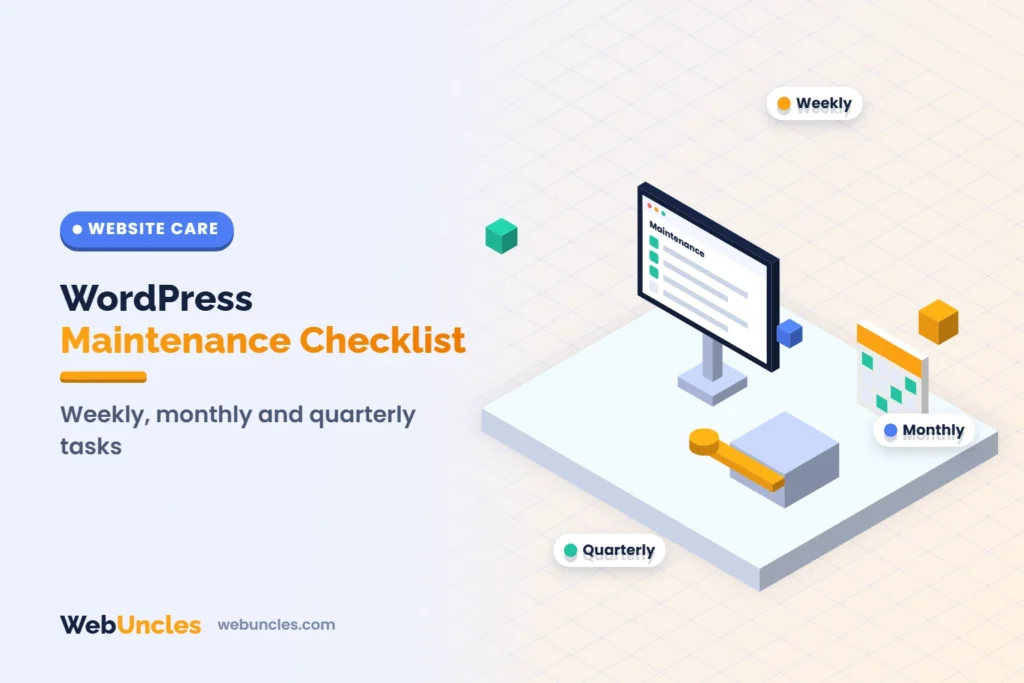
A WordPress maintenance checklist has four parts: weekly checks, monthly jobs, quarterly reviews and a yearly renewal list. The monthly jobs matter most: back up, update core, plugins and themes, check Site Health, test your forms and review who has access. The tables below put each task on a schedule and say why it is there.
You can run this list yourself, or hand it to someone. If you would rather not do it, see our WordPress maintenance and support service. For what that costs, we keep the figures in a separate post: website maintenance cost in India. This post covers the work only.
Every week: a 10-minute check
- Open the home page, one service page and the contact page on a phone. Do they load and look right?
- Send a test enquiry through your main form and confirm it arrives in the right inbox.
- Look at the dashboard for update notices, and check that your last backup is recent.
- For a shop, place a test order or check the last real order’s emails.
The WordPress backup guide suggests weekly backups for a small site with few posts and daily backups for a busy one. Match your check to how often your site changes.
WordPress maintenance checklist: monthly jobs
| Task | How | Why |
|---|---|---|
| Back up database and files | Use your host’s tools or a backup plugin. Keep at least three recent copies in different places | The Updates screen says to back up the database and files before updating. The WordPress backup guide says the database and files are both needed to restore a site |
| Update core, plugins and themes | Dashboard > Updates. Update in small groups so you can tell what broke. Use a staging copy first for shops and busy sites | Old versions stop getting security fixes. Plugins and themes show on the Updates screen whether active or not |
| Open Site Health | Tools > Site Health. Fix critical issues, read the recommended improvements | The Site Health screen flags an outdated PHP version, plugins waiting for updates, and debug settings that expose errors |
| Test forms, login and checkout | Submit a test enquiry, log in as a normal user, buy a test product | A form that silently fails costs you leads and nobody sees an error |
| Review admin accounts | Check Users. Remove accounts you do not recognise or need | Every admin account is a way in. The WordPress hardening guide warns that an attacker with admin access can install malicious scripts |
| Delete unused plugins and themes | Deactivated is not the same as deleted. Remove what you do not use | The WordPress hardening guide says to delete plugins you do not use. The Site Health screen also lists inactive themes and recommends removing unused ones |
| Check broken links and 404s | Run a crawler or look at the errors in Google Search Console | Broken links frustrate visitors and send them away from the page they wanted |
| Clear spam | Empty spam comments and check form-spam filters | Spam hides real enquiries |
| Speed spot check | Run PageSpeed Insights on the home page and your top page. Note the date and the mobile score | A slow drift is easy to miss. Lab scores move from run to run, so compare trends, not single numbers |
A sensible order for the monthly jobs
- Take a backup and confirm the files exist where you expect them.
- Run the updates on a staging copy first if the site takes orders or has many plugins.
- Test the pages and forms on staging, then update the live site.
- Test the live site again, on a phone as well as a computer.
- Open Site Health and clear anything marked critical.
- Write the date, versions updated and any problem in your log.
Keep a simple log
A log can be a spreadsheet with five columns: date, what changed with version numbers, where the backup is, what you tested and any problem. When something breaks two weeks later, the log tells you what changed. It also helps a new developer take over without guessing.
After every update, check three things
- The home page and one inner page on desktop and mobile.
- The contact form and, if you have one, the checkout.
- The browser console or Site Health for new errors.
If an update leaves the site stuck in maintenance mode, the Updates screen documentation says to delete the .maintenance file in the WordPress root folder and run the update again. It also warns that edits made directly to theme files are lost on a theme update, and recommends a child theme for changes.
Quarterly: reviews that take longer
| Task | How | Why |
|---|---|---|
| Test a restore | Restore last night’s backup to a staging site and open it | The WordPress backup guide advises checking automated backups with a manual one now and then. A backup you have never restored is only a hope |
| Review users and roles | Give each person the lowest role that fits. Check two-step login is on for admins | WordPress has six default roles, and only Administrators can install plugins and themes (roles documentation) |
| Check PHP and database versions | Ask your host which versions you run | The requirements page recommends PHP 8.3 or newer and MariaDB 10.11 or MySQL 8.4 or newer, and says older versions are end of life (checked 14 Nov 2026) |
| Review plugins | Look for plugins that are abandoned, duplicated or no longer needed | Every plugin adds code to update and to secure |
| Core Web Vitals review | Check PageSpeed Insights field data for your top pages | Google’s thresholds are LCP 2.5 seconds or less, INP 200 ms or less, CLS 0.1 or less, at the 75th percentile |
| Check debug and file settings | Confirm WP_DEBUG_DISPLAY is off on the live site | The Site Health screen lists exposed debug settings as a critical issue |
| Content review | Update stale prices, addresses, team and service pages; fix outdated posts | Out-of-date pages cost trust and enquiries |
| Review auto-update settings | Decide which plugins and themes can update on their own | Auto-updates for core, plugins and themes can be switched on under Dashboard > Updates, Plugins and Themes |
Four questions to put to your host each quarter:
- Which PHP and database versions does my plan run, and can I upgrade?
- How long do you keep backups, and can I download them?
- Is there a staging copy I can use for update tests?
- Where can I read the server error logs?
If your speed tests keep getting worse, our guide to why a WordPress site is slow shows how to find the cause.
Once a year
- Renew the domain name, the SSL certificate if it is not automatic, and any premium plugin or theme licences.
- Check that the licences are in your name or your company’s name, not a former developer’s.
- Review your hosting plan against your traffic and your backup needs.
- Update the privacy policy, cookie notice and contact details.
- Write down who to call, and which logins are needed, if the site goes down.
What this checklist does not cover
This list keeps a site healthy. It does not add features, rebuild pages, write content or fix a hacked site. Custom changes are separate work, such as the jobs on our bug fixing and customisation page. If a check finds an error you cannot explain, stop updating and restore the last good backup before you try anything else.
Get help sooner if the site takes orders, holds customer data or brings in most of your leads. A missed update on those sites costs more than the time to do it. For one-off repairs, see bug fixing and customization.
Get a free site check
Not sure what your site needs? Get a free site check and we will tell you which items on this list are overdue. If you want someone to run them every month, start with our maintenance and support page.
FAQ
How often should I do WordPress maintenance?
Do quick checks weekly, the main jobs monthly and deeper reviews quarterly. A busy shop or a site that holds customer data needs more frequent backups; WordPress’s own backup guide suggests daily backups for high-activity sites.
Is it safe to turn on auto-updates?
WordPress lets you enable auto-updates for core, plugins and themes. They save time and close security holes fast, but an update can break a page. Use them for low-risk plugins, keep backups current and check your key pages after updates.
How many backups should I keep?
WordPress’s backup guide suggests keeping at least three to five recent backups, in different places on different media. Always take one before an upgrade or a site move.
What is Site Health in WordPress?
It is a built-in screen under Tools. The Status tab lists critical issues, recommended improvements and passed tests. The Info tab shows your WordPress version, active and inactive themes and plugins, and whether the site uses HTTPS.
Can I do WordPress maintenance myself?
Yes, if you are comfortable with backups, updates and a staging copy. If you are not, or the site earns money, hand the monthly jobs to a developer. You still keep ownership of your logins and backups.
What should I do if an update breaks my site?
Do not keep clicking updates. Restore the last good backup, then repeat the update on a staging copy one plugin at a time to find the one that failed.